|
Your computer may have one or more popup blockers installed that
prevent EZReports popup screens and reports from being displayed.
The EZReports software utilizes many popup screens. You need to include the
www.EZReports.org site in
your popup blocker software so that you can see the popup screens
and reports.
Listed below are the steps to follow to include the
www.EZReports.org site in the
following common popup blockers:
|
|
Back to top of the Page
|
|
Open the site www.EZReports.org
from your internet browser. If you have the GOOGLE Popup
blocker installed, you will see the toolbar displayed in Figure-1.
Please click on the icon that shows 26 blocked. |
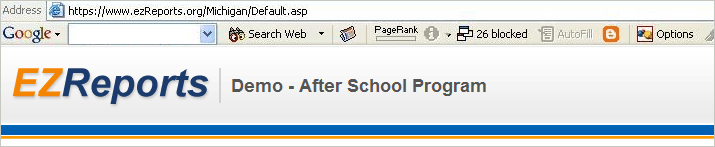
Figure-1
: Google Toolbar
|
|
Once you click on the icon, the toolbar will change as displayed in Figure-2.
|
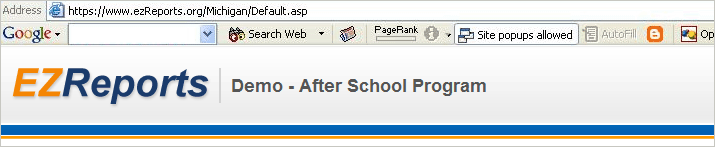
Figure-2 : Allowing a Site to open Popups
on the Google Toolbar
|
|
Back to top of the Page
|
|
Open the site www.EZReports.org
from your internet browser. If you have the YAHOO Popup
blocker installed, you will see the toolbar displayed in
Figure-3. Please click on the popup blocker icon. |
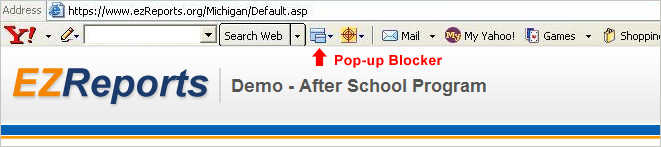
Figure-3
: Google Toolbar
|
|
On screen displayed in Figure-4, select the menu "Always Allow Pop-Ups From..." to allow the site to open Pop-ups.
|
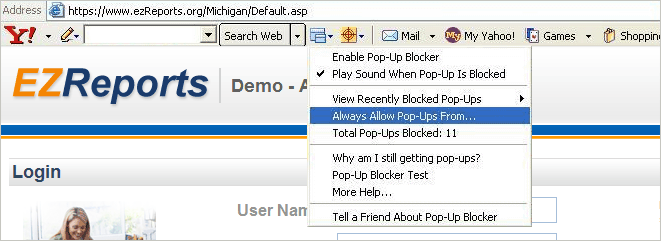
Figure-4
: Allowing a Site to open Popups in Yahoo! Toolbar
|
|
Back to top of the Page
|
Open the site www.EZReports.org
from your internet browser. If you are using Mozilla Firefox as your browser, you will see the toolbar displayed in Figure-5.
Please click on "Tools" and then click on "Options" . |
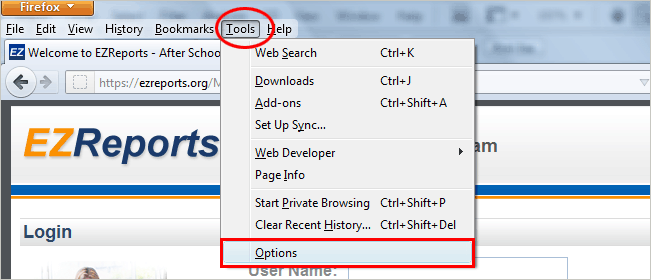
Figure-5
: Firefox Toolbar
|
|
Once you click on the menu, you will see the Options window. Check on checkbox for "Block pop-up windows" and then click on "Exceptions" button as displayed in Figure-6A.
|
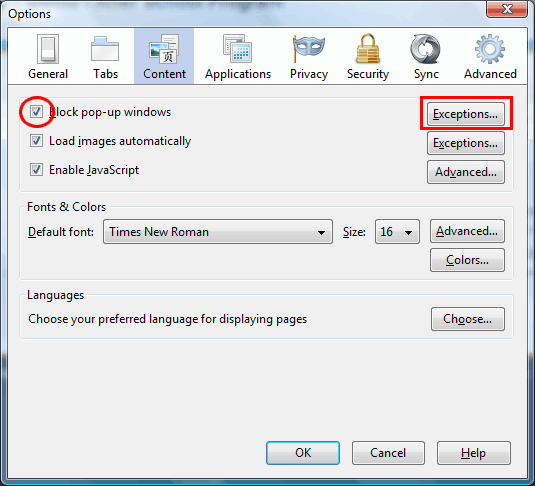
Figure-6A : Allowing a Site to open Popups
on the Mozilla Firefox Browser.
|
|
Type the name of the website (e.g. www.ezreports.org) into Address of web site box in Allowed Sites - Pop-ups window. Then click "Allow" and then "Close" button as displayed in Figure-6B
|
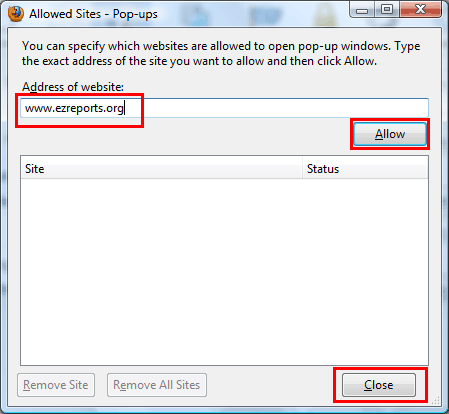
Figure-6B : Allowing a Site to open Popups
on the Mozilla Firefox Browser.
|
Allowing a specific site to open Popups on the Mozilla Firefox Browser.
You will see again the Options window and click on " OK " button as displayed in Figure-6C.
|
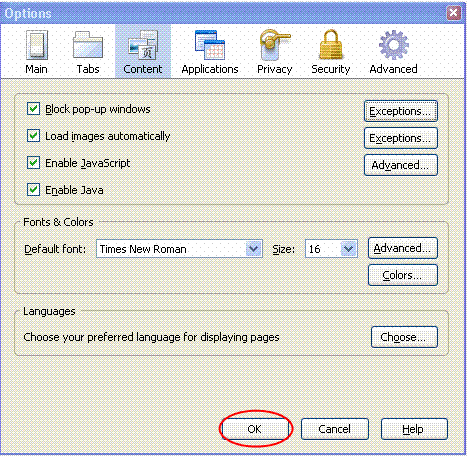
Figure-6C : Allowing a Site to open Popups
on the Mozilla Firefox Browser.
|
|
Back to top of the Page
|
|
Open the site www.EZReports.org
from your internet browser. If you are using Internet Explorer 6 as your browser, you will see the toolbar displayed in Figure-7A. Please click "Tools" then "Pop-up Blocker" and then "Pop-up Blocker Settings.." as displayed in Figure-7A. |
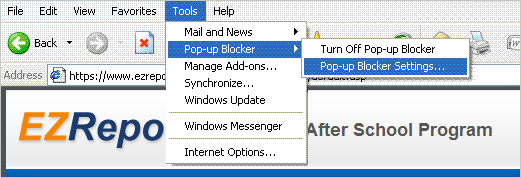
Figure-7A
: Allowing a specific site to open Popups on the Internet Explorer 6 browser.
|
|
Type the name of the website (e.g. www.ezreports.org) into Address of web site box in Allowed Sites - Pop-ups window. as displayed in Figure-7B. Then click "Add" and then "Close" button as displayed in Figure-7B.
|
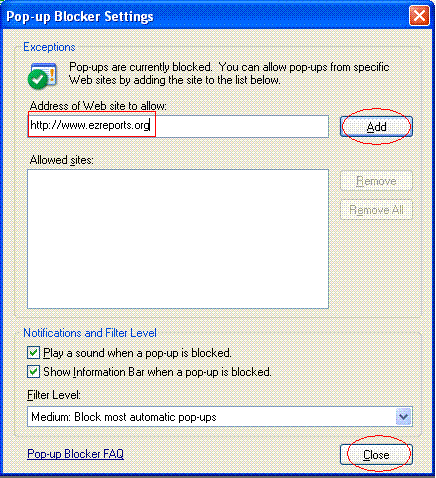
Figure-7B : Allowing a specific site to open Popups on the Internet Explorer 6 browser.
|
|
Back to top of the Page
|
|
Open the site www.EZReports.org
from your internet browser. If you are using Internet Explorer 7 as your browser, you will see the toolbar displayed in Figure-8A. Please click "Tools" then "Pop-up Blocker" and then "Pop-up Blocker Settings.." as displayed in Figure-8A. |
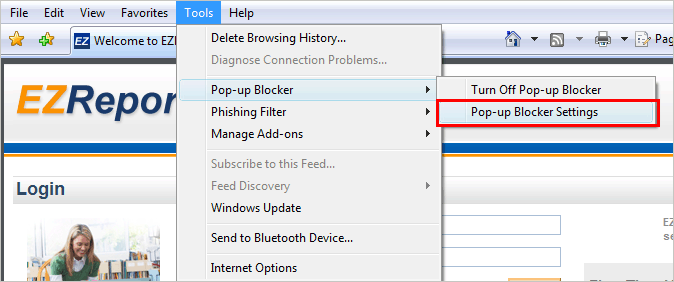
Figure-8A
: Allowing a specific site to open Popups on the Internet Explorer 7 browser.
|
|
Type the name of the website (e.g. www.ezreports.org) into Address of web site box in Allowed Sites - Pop-ups window. as displayed in Figure-8B. Then click "Add" and then "Close" button as displayed in Figure-7B.
|
Figure-8B : Allowing a specific site to open Popups on the Internet Explorer 7 browser.
|
|
Back to top of the Page
|
|
Open the site www.EZReports.org
from your internet browser. If you are using Apple Safari as your browser, you will see the toolbar displayed in Figure-9. Please click "Edit" and make sure "Block Pop-Up Windows" is unchecked as displayed in Figure-9. |
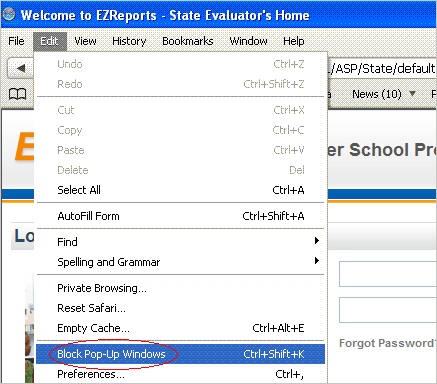
Figure-9
: Allowing to open Popups on the Apple Safari browser.
|
|
Back to top of the Page
|
|
Open the configuration page of STOPZilla
by clicking Start->Programs->STOPZilla!->Launch STOPZilla! or by double-clicking from System Tray.
You will get a Window as displayed in Figure - 10. Please click the
green "Allow" button.
It will allow pop-ups for all sites.
|
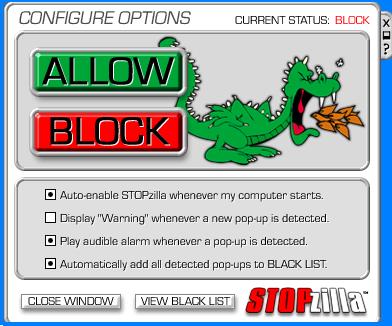
Figure-10
: Allowing a site to open Popups in STOPZilla
|
|
If you want to allow popups only for a specific website,
please select the red "Block" button and then open the site.
If it finds any Pop-up, it stores the address of the Pop-up page in a list called "Black List".
This list can be seen by clicking the button "View Black List" in the Configuration Page.
Here you will find two types of bullets (Figure - 11).
Red and Green bullets indicate all the blocked and allowed Pop-ups respectively.
If you Right click on any item of the list, you will get a menu, from which you can change
the current status of the Pop-ups.
|
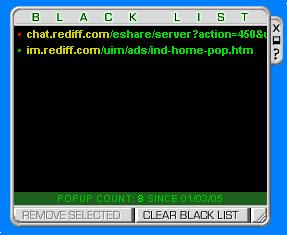
Figure-11
: The list of Blocked/Allowed Pop-ups in STOPZilla
|
|
Back to top of the Page
|
|
Open the site www.EZReports.org
from your internet browser. If you have the CleanMyPC Popup
blocker installed, you will see the toolbar displayed in
Figure-12. Please click on the popup blocker icon.
|
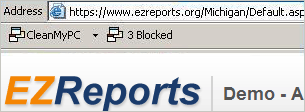
Figure-12
: CleanMyPC Toolbar
|
|
Once you click the Popup blocked icon, the following screen will
be displayed.
|
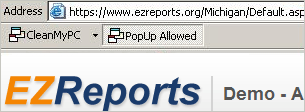
Figure-13
: Allowing a Site to open the Popups in CleanMyPC Toolbar
|
| |
|
If you have some other Popup blocker installed, please go
through the HELP commands to allow Popups on
www.EZReports.org.
|
|
Back to top of the Page
|
|
1. Locate the Popup blocker icon.
|

Figure-14
: AOL toolbar popup blocker
|
|
2. Click on it until itsays Allowed
|

Figure-15
: AOL toolbar popup blocker disabling
|
|
Back to top of the Page
|
|
1. Locate the Popup blocker icon and click on the down arrow.
|

Figure-16
: MSN toolbar popup blocker
|
|
2. Chck Allow pop-ups
|
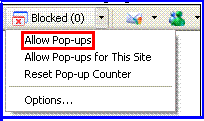
Figure-17
: MSN toolbar popup blocker disabling
|
|
Back to top of the Page
|
|
1. Open Norton Internet Security's/Firewall's main window (you may click the firewall icon on the system tray or use Start->Programs->Norton Firewall)
|
|
2. Click the Ad Blocking line.
|
|
3. Click the Turn Off button.
|
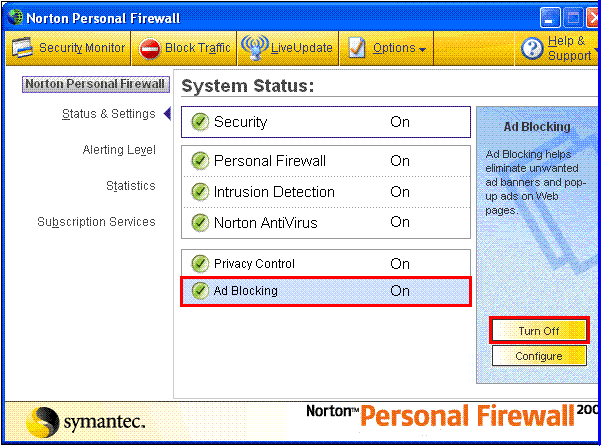
Figure-18
: Norton toolbar popup blocker
|
|
Back to top of the Page
|